How to Install IPTV on Windows PC & Mac (Complete Desktop Setup)
Streaming IPTV on a desktop computer or laptop provides the most powerful, flexible viewing experience available. Powered by high-performance multi-core processors, dedicated graphics cards, and ultra-crisp monitors, PCs and Macs deliver lightning-fast channel switching, low-latency sports streaming, and effortless multitasking across multiple screens.
Because Windows and macOS run different software architectures, the installer package and installation route depend on your machine:
- Windows PCs (Windows 10 & 11) use the dedicated IPTV Smarters Pro (.exe) native installer.
- Apple Mac computers (macOS) run Smarters Player Lite, downloaded safely and directly from the official Mac App Store.
Both desktop versions share the exact same clean interface, integrated electronic program guide (EPG), and Xtream Codes API login architecture. This unified step-by-step guide walks you through setting up your computer, entering your account credentials, and optimizing playback for smooth, buffer-free live television
What You Need Before Setup
Compatible Desktop or Laptop:
- Windows: Windows 10 or Windows 11 (64-bit recommended).
- Mac: macOS Big Sur, Monterey, Ventura, Sonoma, or newer (supports Apple Silicon M1–M4 and Intel processors).
High-Speed Internet Connection: At least 25 Mbps for Full HD 1080p channels; 50 Mbps+ for high-bitrate 4K 60fps sports streams.
Wired Ethernet or 5 GHz Wi-Fi: Ethernet connections eliminate packet loss and jitter during peak viewing hours.
Active IPTV Subscription Credentials:
- Xtream Codes API (Recommended): Server URL, Username, and Password.
- M3U Playlist URL: Direct web link provided by your service.
How to Install IPTV Smarters on Windows & Mac
Follow the dedicated setup steps below for your operating system:
Option A: Installation on Windows PC (Windows 10 / 11)
- Open your web browser and navigate to the official website (
iptvsmarters.com). - Download the dedicated Windows (.exe) client installer.
- Open your Downloads folder, double-click the
.exesetup file, and follow the on-screen prompts to complete installation.(If Windows Defender SmartScreen displays a warning, click More info and select Run anyway). - Launch IPTV Smarters Pro from your desktop shortcut or Windows Start menu and accept the terms of service.
Option B: Installation on Apple Mac (macOS)
- Open the Mac App Store from your Dock or Spotlight Search (
Cmd + Space). - Type Smarters Player Lite into the top-left search bar.
- Click Get, then click Install (authenticate using Touch ID or your Apple ID password).
- Once installation completes, click Open from the App Store or launch the app directly from your Applications folder.
How to Add Your IPTV Account (Xtream Codes API)
Once the application is running on your PC or Mac, the account authentication process is completely identical:
1.Select Xtream Codes API :
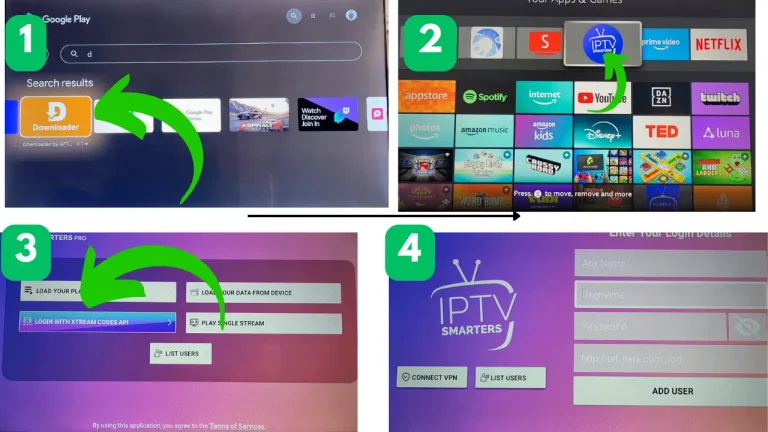
On the welcome splash screen, select Login with Xtream Codes API (often displayed as Add User).
2.Input Your Subscription Details :
Fill in the four configuration fields exactly as provided in your activation email:
- Any Name: Enter a profile label (e.g., Desktop IPTV).
- Username: Your subscription username.
- Password: Your account password.
- Server URL / Port: Your service address
(http://server-address.com:8080).
3.Save and Authenticate :
Click Add User. Smarters will connect to the provider’s server, authenticate your credentials, and automatically build your dashboard.
Playing Live TV & Configuring Desktop Features
- Browse Channels & Bouquets: Click the Live TV tile to open your categorized channels (Sports, News, Entertainment, International). Use keyboard arrow keys or your mouse/trackpad to scroll through categories.
- Synchronize EPG Schedules: Click Install EPG on the main dashboard to import the interactive TV guide and live program schedules.
- Picture-in-Picture & Multitasking:
- On Mac: Click the native macOS PiP button inside the video window to float playback over other active work apps.
- On Windows: Double-click the video pane or press
F11to toggle between full-screen and a resizable desktop window.
- Multi-Screen Mode: Click the Multi-Screen icon on the player control bar to watch up to four live matches simultaneously on a single monitor.
- Pin Favorites: Right-click on any live channel name and select Add to Favorites for rapid access.
Install IPTV on Windows PC & Mac : FQA
No. Running native software like IPTV Smarters Pro (.exe) on Windows or Smarters Player Lite from the Mac App Store performs substantially better, boots instantly, and uses far less RAM and CPU power than heavy Android emulators.
Yes. Smarters Player Lite is fully optimized for Apple Silicon (M1, M2, M3, and M4 chips) and utilizes hardware-accelerated video decoding for smooth 4K playback and minimal battery drain on MacBooks.
Yes. You can drag the application window to a second or third monitor, run it full-screen on one display while working on another, or utilize the built-in multi-screen grid.
Setting up IPTV on your Windows PC or Mac unlocks a high-definition, cable-free viewing hub right at your desk. With dedicated desktop apps like IPTV Smarters Pro and Smarters Player Lite, setup takes just a few minutes with full support for 4K live streams and multi-screen sports tracking.
Ready for Buffer-Free 4K Desktop Streaming?
Upgrade your PC or Mac entertainment setup with 99.9% uptime, anti-freeze technology, and ultra-fast channel switching.
- Instant Xtream Code Delivery: Fully compatible with Windows and macOS Smarters apps.
- 100% Risk-Free: Test our full lineup of live sports, PPV events, and 4K movies before you pay.
👉 Start Your 24-Hour Free Trial – Get Your Xtream Code Credentials Instantly
(Instant automated activation • No credit card required • 24/7 technical support)