How to Install IPTV on Firestick
Setting up IPTV on your Amazon Fire Stick transforms your streaming system into a complete entertainment hub. This step-by-step guide walks you through the entire setup process, from choosing a dedicated media player to loading your favorite channels and Electronic Program Guide (EPG).
Whether you’re using the standard Fire TV Stick Lite, Fire TV Stick 4K Max, or Fire TV Cube, the setup procedure is identical across the Fire OS platform. All you need is a high-speed, stable internet connection, an active subscription with your preferred provider, and a compatible media player app. Follow the clear instructions below to start streaming smoothly in under ten minutes.
What You Need Before Installing IPTV on Firestick
- Firestick or Fire TV Device: Any generation of Fire TV Stick, 4K Max, or Fire TV Cube running updated Fire OS.
- Stable Internet Connection: A minimum download speed of 25 Mbps for smooth HD and 4K playback.
- IPTV Service Credentials: An M3U URL playlist, Xtream Codes API details (server URL, username, and password), or a portal link from your provider.
- Compatible IPTV Player: A media player application such as IPTV Smarters Pro, TiviMate, or XCIPTV.
How to Install IPTV on Firestick
Open the Firestick Home Screen
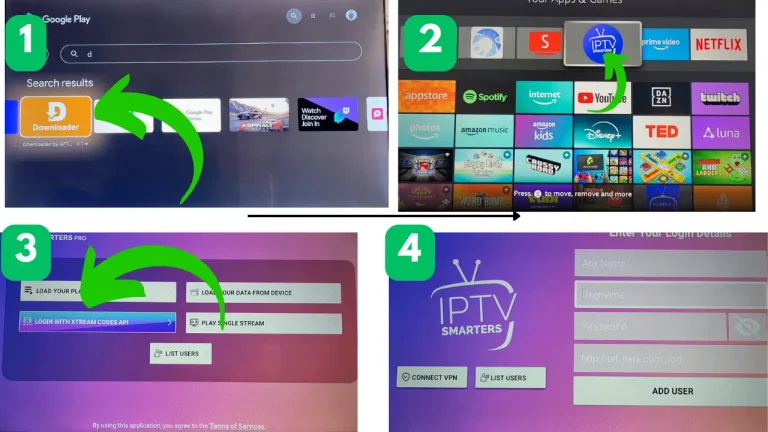
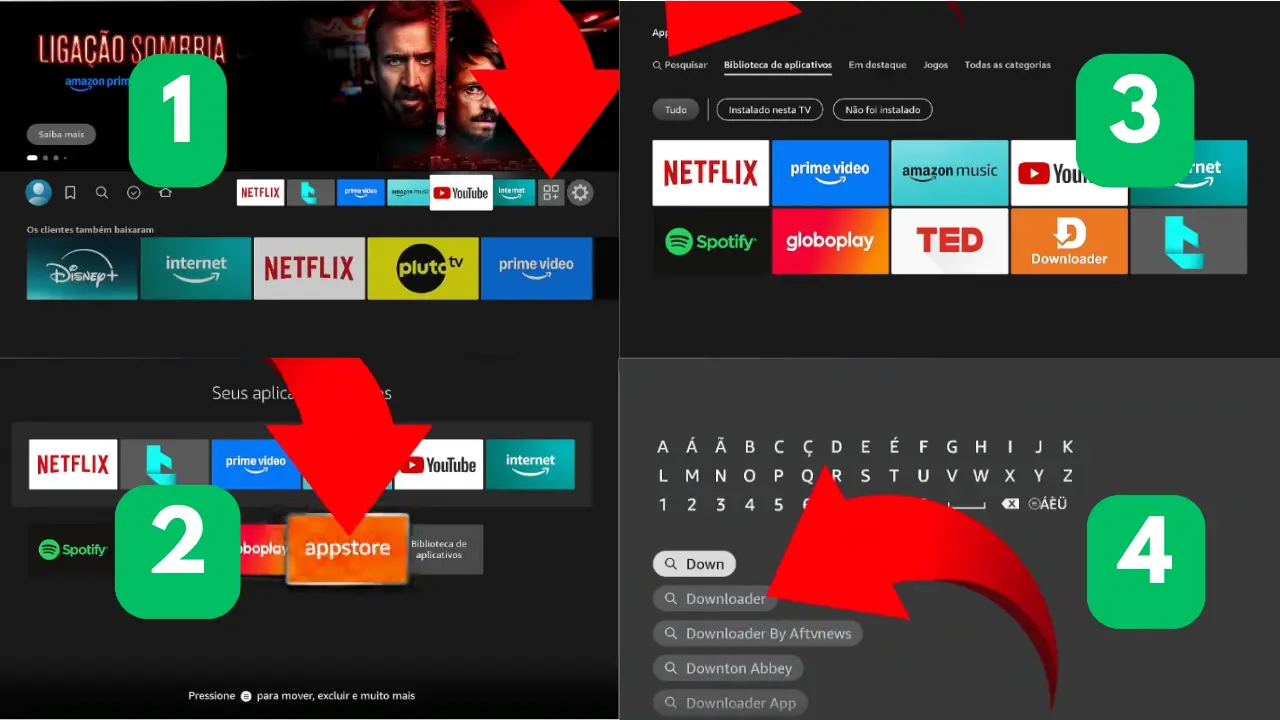
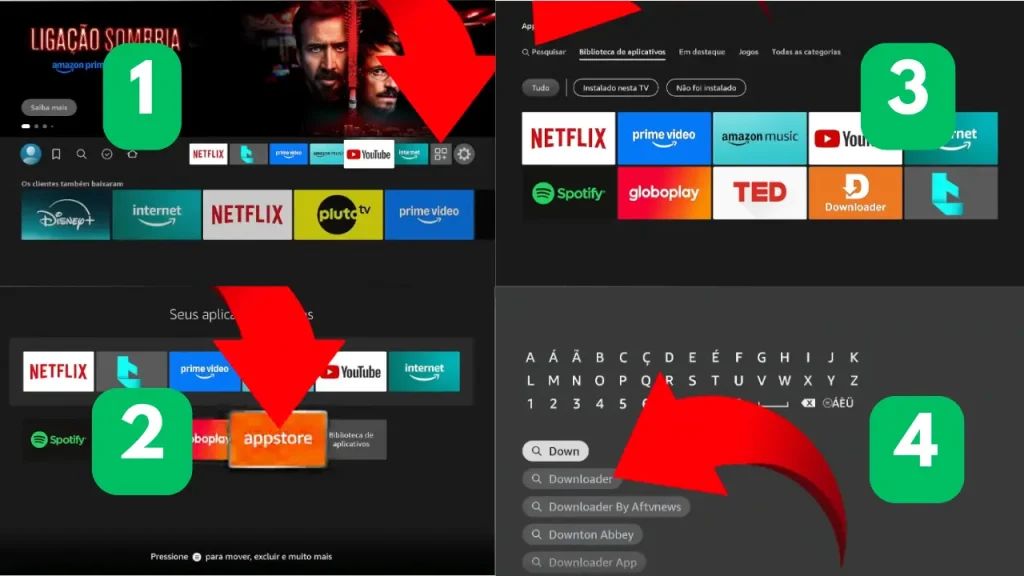
Turn on your TV and Firestick. From the main control panel, navigate to the search menu icon or select the search bar on your screen. Look for the Downloader app (its icon is orange). All steps are shown in the image below the screen.
Find and Install Your IPTV Player
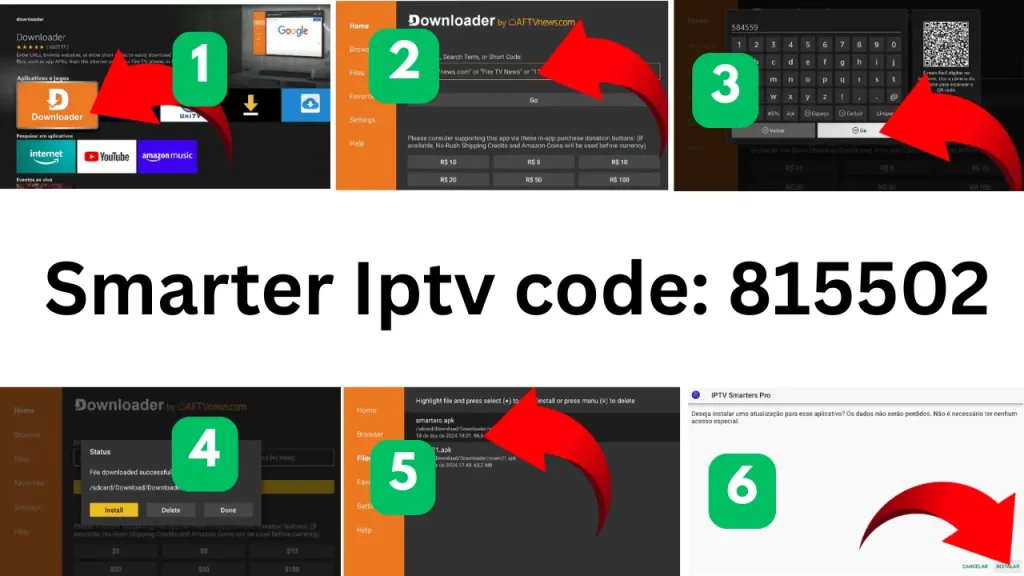
need to install a compatible IPTV player. The screenshots below show an example of how to download and install IPTV Smarters Pro using the Downloader app.
- Step 1: Open Downloader
From your Fire TV home screen, search for Downloader and open the app. If it is not already installed, find it in the available apps and install it first.
- Step 2: Enter the IPTV Player Code
Once Downloader is open, use the search or URL field to enter the code provided for the IPTV player. In the example shown, the Downloader screen is being used to access the IPTV Smarters Pro installation file.
- Step 3: Open the Download Link
After entering the code, select Go and wait for the download page or file to open. Follow the on-screen instructions to start downloading the IPTV player.
- Step 4: Download the Installation File
Once the file has finished downloading, Downloader displays a confirmation screen. Select Install to continue with the IPTV player installation.
Step 5: Install the IPTV Player
Select the downloaded installation file and choose Install. Wait a few moments while your Fire TV device completes the installation process.
- Step 6: Confirm the Installation
When the installation is complete, open the IPTV player. The example shows IPTV Smarters Pro displaying an installation/update confirmation screen. Select Install or the appropriate confirmation button to finish the process.
Once the IPTV player is installed, you can open it and continue to the next step of your IPTV setup by entering the login or playlist information provided by your IPTV service.
Open the IPTV app
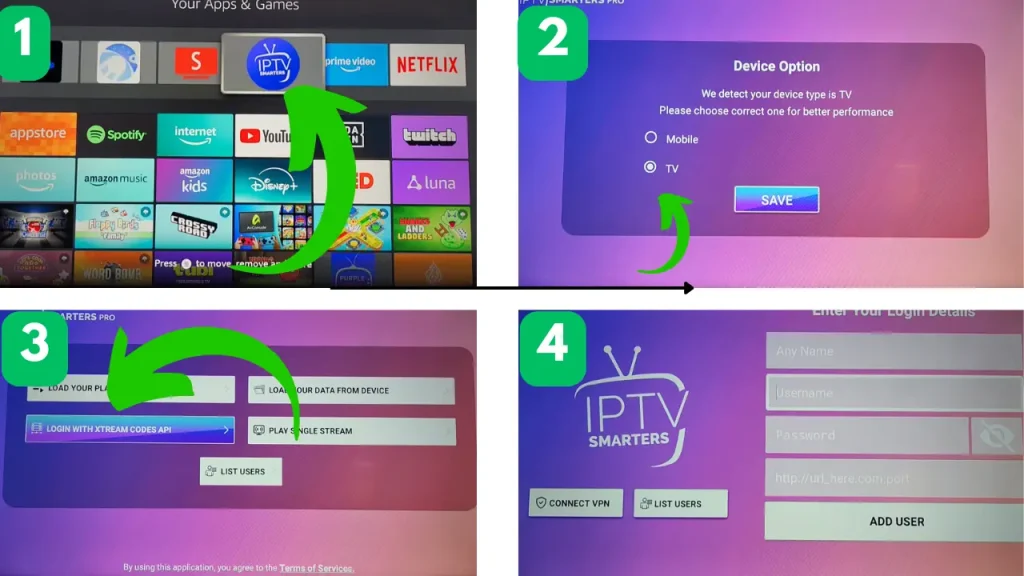
Once installed, click “Open” directly from the download window, or access the application at any time by holding down the home button on your remote control and selecting “Apps and Channels”.
Enter your IPTV login details
Launch the application and choose your login method – usually uploading a playlist or file/link (M3U) or logging in using the Xtream Codes API. Enter your username, password, and IPTV server address exactly as provided by your IPTV service. Get your 24 hours free trial Xtream code
How to Set Up IPTV on Firestick
After loading your channels, adjust the app settings for the best viewing experience:
Organizing Favorites: Press and hold the Select button on your remote while hovering over any channel to add it to your Favorites for quick access.
Setting the Electronic Program Guide (EPG): Go to App Settings > EPG/Program Guide, then select “Update EPG.” Set the update schedule to “Daily” to ensure accurate program times.
Broadcast Formats and Decoders: If enabled in your player settings, enable/disable your decoder (HW/HW+) or change the broadcast format from TS to HLS if you experience audio/video synchronization delays.
Parental Controls: Enable PIN protection in the settings menu to restrict access to specific adult or international categories.
Common problems with IPTV service on a Firestick device
IPTV app not working: Clear the app cache by going to Settings > Apps > Manage installed apps > [Your IPTV app] > Clear cache.
Channels not showing: If the categories are showing zero channels, the playlist sync has failed. Tap “Refresh Playlist” within the app or ensure your subscription is active.
IPTV buffering: Buffering usually indicates bandwidth limitations, high network latency, or server congestion at your service provider.
EPG not working: Force-refresh the EPG source from the app settings, or clear the EPG cache to reload the program schedules.
Login not working / Playlist not working: Double-check your Xtream Codes credentials to ensure they are free of spelling errors, case sensitivity, and extra spaces at the end of the server URL.
How to improve IPTV streaming on a Firestick device
Check your internet speed: Run the built-in speed test on your Firestick to ensure your connection provides a stable speed of at least 25-50 Mbps.
Restart your Firestick: Clear background memory by pressing and holding the Select and Power On/Pause buttons together for 5 seconds until the device restarts.
Free up storage space: Keep at least 1.5 GB of free space on your Firestick. Uninstall unused apps from the Manage Installed Apps menu.
Switch to 5 GHz Wi-Fi or Ethernet: Connect your Firestick to a 5 GHz Wi-Fi network instead of 2.4 GHz, or use an Amazon Ethernet adapter for a wired connection.
Keep your apps up to date: Ensure both Fire OS and the IPTV Player app are updated to the latest software versions for security patches and performance improvements.
Firestick IPTV Installation FAQs
Yes, all modern Amazon Firestick models (including 2nd Gen, 3rd Gen, 4K, 4K Max, and Fire TV Cube) support compatible IPTV player applications.
This is commonly caused by low device RAM or corrupt temporary files. Restart your Firestick, clear the app cache, or reinstall the application.
If your playlist is empty, verify your account status with your provider and select the Reload/Update Playlist button in your app settings.
Buffering typically occurs due to unstable Wi-Fi connections, local network congestion, ISP speed throttling, or server-side load from the IPTV provider.
If installed via the Amazon Appstore, updates download automatically. If sideloaded, enter the original source link in the Downloader app to install the latest APK over the existing version.
Setting up IPTV on your Firestick is just a few steps away: Choose a high-performance streaming app, enter your server credentials, and configure your TV guide. With proper network optimization and regular cache maintenance, your device will provide smooth, high-definition streaming.
Ready for premium streaming without buffering?
Enjoy unparalleled server stability, 4K picture quality, and blazing-fast channel switching with instant Xtream code delivery.
Get your instant Xtream code: Get the best price on all our premium monthly, semi-annual, and annual packages.
Completely risk-free: Try our full library of live channels, sports, and video on demand before you pay a penny.
👉 Start your free 24-hour trial now – get your instant Xtream code details
(No credit card required • Instant automatic activation • 24/7 technical support)