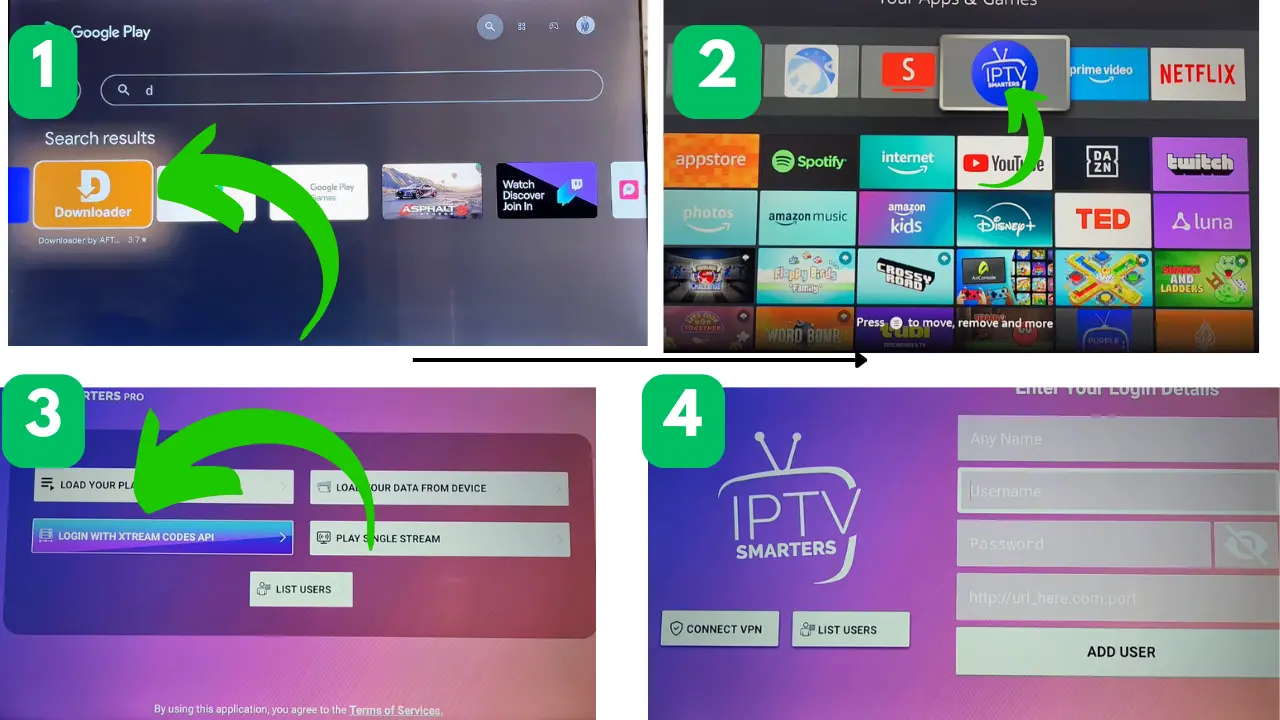
How to Install IPTV on Android TV and Android TV Box
Android TVs and standalone Android TV devices provide a flexible and efficient environment for IPTV streaming. With the Google Play Store running pre-installed, setting up your favorite channels, movies, and TV guide takes just minutes without any complicated setup.
This comprehensive guide provides a step-by-step explanation of how to install a dedicated IPTV player on any compatible Android TV device (such as Sony, Philips, TCL, or Hisense) or streaming device (such as the Nvidia Shield, Xiaomi Mi Box, or generic Android TVs). Follow the steps below to set up your credentials and start watching live content in high definition.
What You Need Before Setup
Android TV or Android TV Receiver: A device running Android TV or Google TV with access to the Google Play Store.
High-Speed, Stable Internet: A minimum download speed of 25 Mbps (for HD streaming) or 50 Mbps (for 4K streaming), preferably via 5 GHz Wi-Fi or a direct Ethernet connection.
IPTV Player App: A Play Store-approved player (such as TiviMate, IPTV Smarters Pro, XCIPTV, or Televizo).
Valid IPTV Subscription Data: An M3U playlist, Xtream Codes API login credentials (server address, username, password), or gateway MAC address.
How to install IPTV on an Android TV
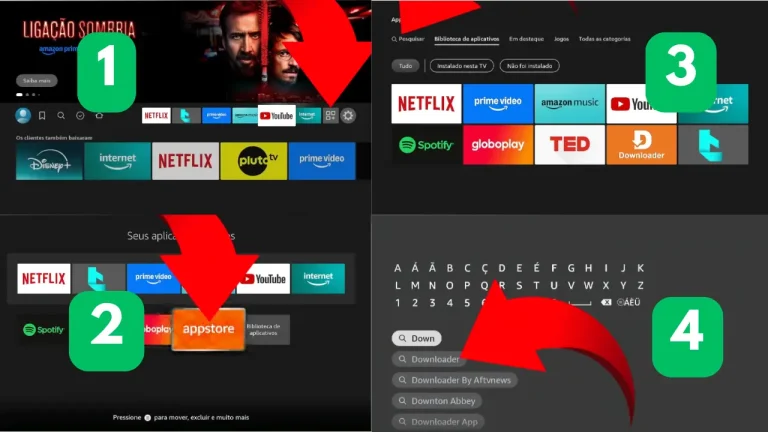
1.Install the Downloader App:Available directly on the official app store.
From your device home screen, go to Find or the search bar, type Downloader, select the orange icon app by AFTVnews, and click Get or Download.
2.Enable Unknown Sources Permissions:Required to allow APK installations.
Go to device Settings > Device Preferences > Developer Options. Select Install Unknown Apps (or Apps from Unknown Sources), locate Downloader, and toggle it to ON.
(If Developer Options is hidden, go to Settings > My Fire TV > About and click your device name 7 times rapidly to unlock it.)
3.Enter the IPTV Smarters Pro Downloader Code:
Launch the Downloader app, select the URL/Search bar on the home tab, and type the Smarters Pro quick code: 815502
4.Download and Install the Smarters Pro APK:
The Downloader app will automatically connect to the server and download the APK installation file. Once the download finishes, click Install, then click Done (or Open).
5.Log In with Your Xtream Codes Credentials:
Open IPTV Smarters Pro, select Login with Xtream Codes API, and enter your details:
- Any Name: Your preferred profile name
- Username: Provided by your IPTV provider
- Password: Provided by your IPTV provider
- Server URL / Port: e.g.,
http://server-address:port
👉 Claim Your 24-Hour Free Trial – Get Your Xtream Code Credentials Instantly
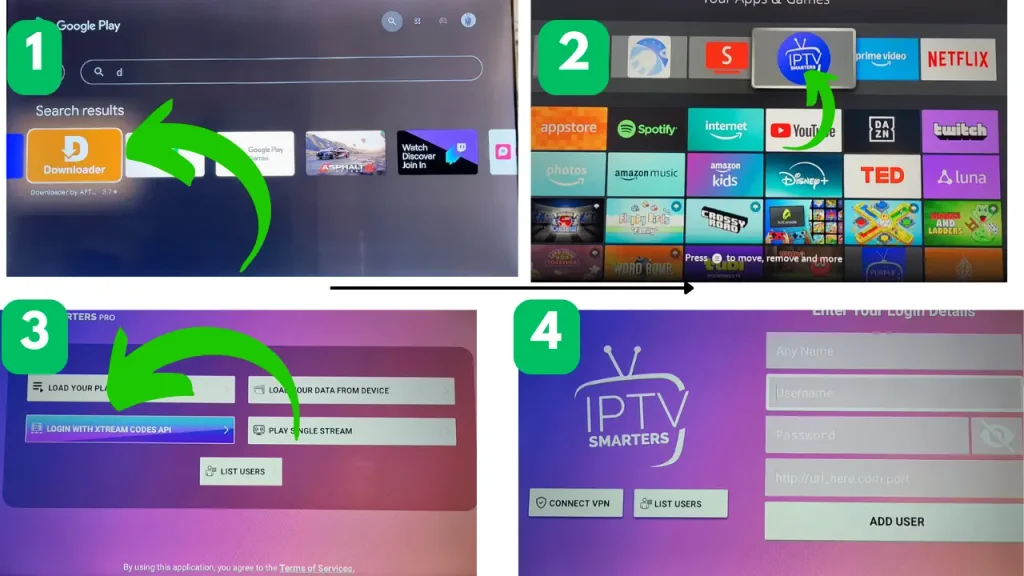
Android TV IPTV Setup Tips
Use hardware acceleration: In your device’s video settings, set the decoder to hardware mode (HW+) for smoother playback and no frame drops when watching 4K HD streams.
Customize channel groups: Hide unwanted international packages or adult content categories in your playlist management settings to maintain a clean user interface.
Enable automatic EDP updates: Set the EDP to update automatically at startup or every 24 hours to ensure your TV shows air on schedule.
Assign remote shortcuts: Advanced playback devices like IPTV Smarters Pro and TiviMate allow you to assign custom functions to your remote (such as long-pressing the OK button for quick access to the channel list or toggling the TV program guide).
Common Android TV IPTV Problems
App Crashing or Freezing: Go to Android Settings > Apps > See all apps > [Your IPTV App] and select Force Stop, followed by Clear Cache.
Playlist Fails to Load: Ensure there are no trailing spaces or typing errors in the Server URL or password. Verify that your subscription is active.
Buffering and Stuttering: Switch your Android TV from 2.4 GHz Wi-Fi to a 5 GHz band or use an Ethernet cable. Lower the stream buffer size in the player settings if network latency is fluctuating.
No Audio on Specific Streams: Change the audio decoder setting inside the player from Software (SW) to Hardware (HW), or switch the audio track from AC3 to AAC.
Installing IPTV on Android TVs and Android TV Boxes is quick and easy thanks to native integration with the Google Play Store. Connecting a powerful player like TiviMate or IPTV Smarters to an optimized network setup ensures a seamless cable-quality TV viewing experience right on your big screen. Unlock premium channels with instant access to your Xtream Code. Elevate your Android TV experience with blazing-fast channel switching, 99.9% uptime, and true 4K resolution. Best market rates: Flexible monthly, semi-annual, and annual subscription plans. No commitment: Try all sports, live channels, and on-demand movies before subscribing.
👉 Get your free 24-hour trial – receive your Xtream Code credentials instantly (instant auto-activation • No credit card required• 24/7 dedicated support) → Complete IPTV Installation Guide
FAQs
Yes. Whether you use a certified Google TV/Android TV device (Nvidia Shield, Chromecast with Google TV, Xiaomi Box) or an open-source Android box, compatible IPTV player apps are fully supported.
TiviMate is widely considered the premier player for Android TV due to its modern UI and advanced EPG navigation. IPTV Smarters Pro and XCIPTV are also popular alternatives.
Using a VPN is recommended if your Internet Service Provider (ISP) throttles high-bandwidth video streams during peak hours or live sports events.
If the program guide shows “No Information,” head to your player settings, clear the EPG cache, and click Update EPG to force a fresh data sync.