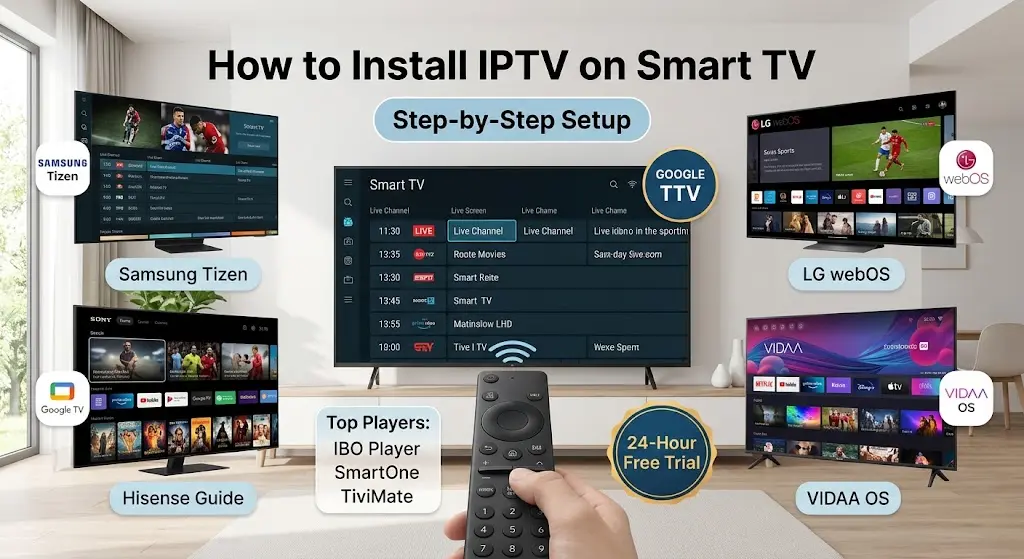
How to Install IPTV on Smart TV: The Ultimate Setup Guide for All Brands
Setting up IPTV on a smart TV transforms your living room television into a complete entertainment system, allowing you to stream thousands of live TV channels, pay-per-view sports (PPV), international channels, and on-demand movies in 4K resolution. Unlike traditional cable receivers that rely on coaxial connections, IPTV on a smart TV delivers content directly over a high-speed internet connection. However, because TV manufacturers use different operating systems—such as Samsung Tizen, LG webOS, Google/Android TV, Hisense VIDAA, and Vizio SmartCast—there is no single, universal IPTV app. Each platform requires a compatible media player and a specific activation method. This comprehensive guide provides a detailed explanation of how IPTV works on smart TVs, compares the best players by operating system, outlines general setup methods, and connects you directly to installation guides specific to your TV brand.
Smart TV IPTV Compatibility & Player Comparison
Before installing any application, determine your TV’s native operating system. Use this comparison table to select the appropriate media player for your device model:
| TV Brand | Operating System | Top Compatible IPTV Players | Sideloading Allowed? | Primary Connection Method |
| Samsung | Tizen OS | IBO Player, SmartOne IPTV, Bob Player, Nanomid | No | Web Portal / MAC Activation |
| LG | webOS | IBO Player, IPTV Smarters Pro, SmartOne, SS IPTV | No | Web Portal / Appstore Download |
| Sony / Philips / TCL | Google TV / Android TV | TiviMate, IPTV Smarters Pro, XCIPTV, Televizo | Yes | Direct Login / Xtream Codes API |
| Hisense | VIDAA OS / Google TV | IBO Player, SmartOne (VIDAA) or TiviMate (Google TV) | Model-dependent | App Store / Web Upload |
| Vizio | SmartCast | Web Video Caster, AirPlay 2, Chromecas | No | Screen Mirroring / Casting |
Choose your smart TV
Choose your TV manufacturer below for a detailed step-by-step explanation:
- How to install IPTV on a Samsung Smart TV: A comprehensive installation guide for Samsung Tizen-powered TVs using top streaming players like Smarters IPTV pro, IBO Player, SmartOne IPTV, and Nanomid.
- How to install IPTV on an LG Smart TV: Setup instructions for LG models running webOS using the LG Content Store.
- How to install IPTV on a Vizio Smart TV: Streaming methods and native apps for Vizio SmartCast TVs.
- How to install IPTV on a Hisense Smart TV: Setup steps for Hisense VIDAA OS, Roku TV, and Android/Google TV.
- How to Install IPTV on Sony Smart TV: Native Google TV and Android TV setup using Google Play Store media players.
General requirements for Smart TV IPTV
- High-speed internet: A stable connection of at least 25 Mbps (50 Mbps for 4K UHD content).
- Compatible player app: An active player downloaded from your TV’s native app store.
- Active IPTV subscription: An M3U playlist URL or Xtream Codes API login (server URL, username, and password).
Ready for Premium 4K Streaming on Your Smart TV?
Experience buffer-free sports, movies, and global channels with instant automated activation.
- Best Price Guarantee: Flexible monthly and annual plans.
- 100% Risk-Free: Test our full lineup before committing.
👉 Get Your 24-Hour Free Trial – Instant Xtream Code Access
How to Fix Common Smart TV IPTV Streaming Issues
The app freezes or closes unexpectedly: Smart TVs have limited internal RAM. Free up memory by closing streaming apps running in the background, clearing the IPTV app cache in your TV’s app settings, or performing a full restart (unplug the TV’s power cord for 60 seconds).
Channels Lag or Buffer Continuously:Buffering is almost always caused by Wi-Fi packet loss or ISP bandwidth throttling. Switch to a wired Ethernet connection, reboot your home router, or test an alternative DNS server (such as Google DNS 8.8.8.8 or Cloudflare 1.1.1.1) in your TV’s network settings.
“Playlist failed to load” or authentication errors: Make sure your account hasn’t expired and that there are no spelling mistakes or hidden spaces in your server URL or password.
TV guide empty / Electronic Program Guide missing: Go to your operator’s settings menu, select Electronic Program Guide sources, and click Force Update / Update Electronic Program Guide to rebuild the electronic table database.
Smart TV IPTV FAQs
No. TiviMate is exclusively built for Android TV / Google TV platforms. Samsung and LG TVs do not support Android APKs; they require native Tizen/webOS apps like IBO Player, SmartOne, or SS IPTV.
Not necessarily. Modern Smart TVs (2020+) handle IPTV playback smoothly through native app stores. However, if your TV is older or runs a restricted OS (like older Vizio models), adding an external device like a Fire TV Stick 4K or Chromecast with Google TV offers faster navigation and greater app selection.
Some players (like SS IPTV) are free, while premium players (such as IBO Player or TiviMate) offer a free trial followed by a small one-time lifetime license fee for advanced features like multiview and automatic EPG syncing.